What Is HDMI ARC? The One-Cable Guide to Better TV Sound
ARC and eARC let your TV send audio back down a single HDMI cable to a soundbar or AV receiver. Here’s how it works, how it differs from optical, how to set it up, and how to fix it when it goes quiet.
Key takeaways
- HDMI ARC (Audio Return Channel) sends sound from your TV back to a soundbar or AV receiver over the same HDMI cable that already carries picture — so one cable replaces a separate audio lead.
- eARC is the enhanced version. It carries far more data, so it passes lossless and object-based formats like Dolby Atmos and DTS:X that plain ARC cannot.
- eARC needs a capable cable. Use a High Speed HDMI cable with Ethernet or, better, an Ultra High Speed HDMI cable.
- Most “no sound” problems come down to three things: the wrong port, HDMI-CEC switched off, or the wrong audio output setting.
What is HDMI ARC?
HDMI ARC stands for Audio Return Channel. It is a feature built into the HDMI ports on most modern TVs, soundbars, and AV receivers. In plain terms, HDMI ARC lets your television send audio back to a sound system through the very same HDMI cable that the sound system uses to send picture to the TV. Audio travels in the opposite direction to video, down one shared cable.
That solves an old, messy problem. Before ARC, connecting a TV to a soundbar usually meant running a second cable — typically an optical (Toslink) lead — just for sound. You also juggled two remotes: one for the TV, one for the speakers. HDMI ARC removes the extra cable and, through HDMI-CEC, lets a single remote control both volume and power. Smart TV apps, the built-in tuner, and anything plugged into the TV all route their audio to your speakers automatically.
Why does that matter beyond tidiness? A single cable means a cleaner install behind a wall-mounted TV, with one less lead to hide. Routing everything through the TV means you never switch inputs on a separate amplifier just to hear the right source. And because the connection is digital, it carries multi-channel surround, not just stereo — so a modest soundbar can deliver proper 5.1 from your everyday viewing without any extra wiring. For most living rooms, HDMI ARC is the simplest way to get real sound out of a flat TV’s thin built-in speakers.
ARC arrived with the HDMI 1.4 specification back in 2009, so the hardware is mature and widely supported. Its newer sibling, eARC, arrived with HDMI 2.1 and lifts the audio quality ceiling dramatically. We’ll compare the two in detail below.
How HDMI ARC works
Normally, HDMI sends video and audio in one direction: from a source, such as a Blu-ray player, to a display. HDMI ARC adds a return path on the same connector. It uses spare pins in the HDMI cable to carry an audio signal in the reverse direction, from the TV back to the sound system.
Here is the typical flow. You watch a film on a streaming app built into the TV, or on the broadcast tuner. The TV decodes that audio and pushes it down the ARC link to your soundbar or AV receiver, which then drives the speakers. Even a games console or set-top box plugged into another HDMI port on the TV will have its sound routed out through ARC. The TV becomes the hub, and one return cable feeds everything to your speakers.
Control rides along too. HDMI ARC works hand in hand with HDMI-CEC (Consumer Electronics Control), the feature manufacturers brand as Anynet+ on Samsung, Bravia Sync on Sony, SimpLink on LG, and Viera Link on Panasonic. CEC is what lets your TV remote raise the soundbar’s volume and switch it on or off with the screen. Because ARC and CEC are linked, a CEC setting switched off is one of the most common reasons ARC seems “broken.” We’ll return to that in troubleshooting.
HDMI ARC ports explained
Not every HDMI port supports ARC. On most TVs, only one HDMI port carries the Audio Return Channel, and it is clearly labelled. Look on the back or side panel for an HDMI input marked “ARC” or “eARC” — for example, “HDMI 2 (eARC).” That label is the giveaway. If you connect your soundbar to any other HDMI port, ARC simply won’t work, no matter how the rest is configured.
The rule is straightforward: connect the HDMI cable from your soundbar’s or AV receiver’s HDMI Out (ARC/eARC) socket to the TV’s HDMI (ARC/eARC) socket. Both ends need to be the ARC-labelled ports. On a soundbar, the ARC port is usually the one marked “HDMI OUT (TV-ARC).” On an AV receiver, it is the main HDMI output that feeds the TV.
If a port is labelled eARC, it is backward compatible: it still works with ARC-only devices, just without the enhanced audio formats. So an eARC TV paired with an ARC-only soundbar will fall back gracefully to standard ARC.
ARC vs eARC: what’s the difference?
This is the comparison most people come for. ARC and eARC do the same basic job — return audio over HDMI — but eARC removes the bandwidth limit that holds ARC back. That single change decides which surround formats you can actually hear.
Standard ARC has limited bandwidth. It comfortably carries stereo and compressed 5.1 surround such as Dolby Digital and DTS, which is fine for broadcast TV and many streaming apps. It can even pass a compressed form of Dolby Atmos carried inside Dolby Digital Plus. What it cannot carry is high-bitrate, lossless audio or full, lossless object-based surround.
eARC increases the available bandwidth by a wide margin. That headroom lets it pass uncompressed 5.1 and 7.1, lossless tracks like Dolby TrueHD and DTS-HD Master Audio, and object-based formats — full Dolby Atmos and DTS:X — exactly as they sit on a 4K Blu-ray or premium streaming tier. eARC also adds a more robust automatic lip-sync correction, so picture and sound stay aligned.
| Feature | HDMI ARC | HDMI eARC |
|---|---|---|
| Introduced with | HDMI 1.4 | HDMI 2.1 |
| Audio bandwidth | Limited (around 1 Mbps) | High (up to ~37 Mbps) |
| Stereo & compressed 5.1 | Yes | Yes |
| Uncompressed 5.1 / 7.1 | No | Yes |
| Lossless (Dolby TrueHD, DTS-HD MA) | No | Yes |
| Object audio (Dolby Atmos, DTS:X) | Limited / compressed only | Full, lossless |
| Automatic lip-sync | Optional | Built in |
| Cable needed | Standard HDMI | High Speed w/ Ethernet or Ultra High Speed |
One practical point ties the table together. To get everything in the eARC column, three things must all be true: the TV must support eARC, the soundbar or receiver must support eARC, and the HDMI cable between them must be capable. Skip the right cable and an eARC system quietly drops back to ARC-level sound — which is exactly the disappointment a Dolby Atmos setup is meant to avoid.
Which one do you actually need?
Match the connection to your content. If you mostly watch broadcast TV, cable, and standard streaming, plain ARC already carries everything those sources output, and an upgrade buys you nothing audible. If you own a Dolby Atmos soundbar or a home-cinema receiver and watch 4K Blu-rays or the premium Atmos tiers on streaming services, eARC is the difference between hearing object-based, overhead sound and hearing a compressed approximation of it. In short: ARC is enough for casual viewing, while eARC earns its place in a system built around immersive audio. When in doubt, wire it for eARC — it costs little more and falls back to ARC automatically when a source doesn’t need the extra capability.
HDMI ARC vs optical: which should you use?
Optical, also called Toslink or S/PDIF, was the go-to TV audio connection for years, and many TVs still include it. It carries stereo and compressed 5.1 surround over a thin fibre-optic lead. So how does it stack up against HDMI ARC?
For raw audio capability, optical and standard ARC are roughly equal — both handle compressed 5.1, neither handles lossless or Atmos. The deciding factors are control and headroom. ARC adds HDMI-CEC, so one remote runs everything; optical has no control channel, so you keep using the soundbar’s own remote. And ARC’s path can be upgraded to eARC for Atmos, whereas optical has a hard ceiling and will never carry object-based audio.
Optical still has its place. It is electrically isolated, which sidesteps the occasional HDMI-CEC handshake quirk and ground-loop hum, and it can run reliably over longer distances. Latency on both is low and broadly similar, so neither noticeably lags the picture. But for a modern TV-and-soundbar pairing, HDMI ARC — and eARC where available — is the better default.
| Optical (Toslink) | HDMI ARC | HDMI eARC | |
|---|---|---|---|
| Compressed 5.1 | Yes | Yes | Yes |
| Lossless / Atmos | No | No | Yes |
| One-remote (CEC) | No | Yes | Yes |
| Single cable for A/V | No | Yes | Yes |
| Best for | Older gear, long runs | Everyday TV sound | Home cinema, Atmos |
Does your gear support HDMI ARC or eARC?
Before you buy a cable or rearrange your setup, confirm both ends actually support the feature you want. Three quick checks settle it. First, look at the ports: a TV or soundbar with ARC labels the relevant HDMI socket “ARC” or “eARC,” so the panel itself tells you what it can do. Second, check the spec sheet or manual for the exact term — many devices support ARC but not the newer eARC, and only the spec will say which. Third, dig into the audio settings menu, where an “eARC” or “HDMI eARC” toggle confirms support and sometimes needs switching on.
The golden rule is that both devices must support the same feature. An eARC TV paired with an ARC-only soundbar runs at ARC level, and vice versa. The system always settles at the lower of the two. That fallback is handled automatically and won’t break anything — it simply caps the audio quality at what both ends share. If you’re shopping for new kit specifically to get Dolby Atmos, put “eARC” on your checklist for the TV, the sound system, and the cable alike.
How to set up HDMI ARC with a soundbar
A soundbar is the most common HDMI ARC pairing, and setup takes only a few minutes.
- Connect the right ports. Run an HDMI cable from the soundbar’s HDMI OUT (ARC/eARC) port to the TV’s HDMI (ARC/eARC) port. Both ends must be the ARC-labelled sockets.
- Turn on HDMI-CEC. In the TV’s settings, enable HDMI-CEC (look for Anynet+, Bravia Sync, SimpLink, or Viera Link). Enable the matching control setting on the soundbar.
- Set the TV’s audio output. Choose “HDMI ARC,” “eARC,” or “Audio system” / “External speakers” as the TV’s sound output, rather than the TV’s own speakers.
- Pick the audio format. For Atmos and lossless over eARC, set the TV’s digital audio output to “Bitstream,” “Pass-through,” or “Auto” — not “PCM,” which forces stereo or basic surround.
- Test it. Play something and confirm sound comes from the soundbar, then check the TV remote controls its volume. Done.
How to set up HDMI ARC with an AV receiver
An AV receiver (AVR) sits at the centre of a bigger system, switching several sources and driving multiple speakers. ARC works a little differently here, because the receiver usually sends picture to the TV as well as receiving audio back from it.
- Use the receiver’s ARC/eARC HDMI output. Connect the AVR’s main HDMI OUT marked ARC or eARC to the TV’s ARC/eARC HDMI port. This one cable carries video to the TV and returns the TV’s audio.
- Plug your sources into the receiver. Blu-ray players, consoles, and streamers connect to the AVR’s HDMI inputs, so the receiver handles switching and decoding.
- Enable HDMI-CEC on both. Switch on CEC/ARC in the receiver’s HDMI menu and on the TV, so the link negotiates correctly.
- Match the audio settings. Set the TV to output Bitstream/Pass-through, and confirm the receiver is set to accept eARC if you want Atmos from the TV’s own apps.
- Verify both directions. Check that a source plugged into the receiver shows on the TV, and that the TV’s built-in apps play through the receiver. If either fails, see troubleshooting below.
The cable that quietly decides your sound
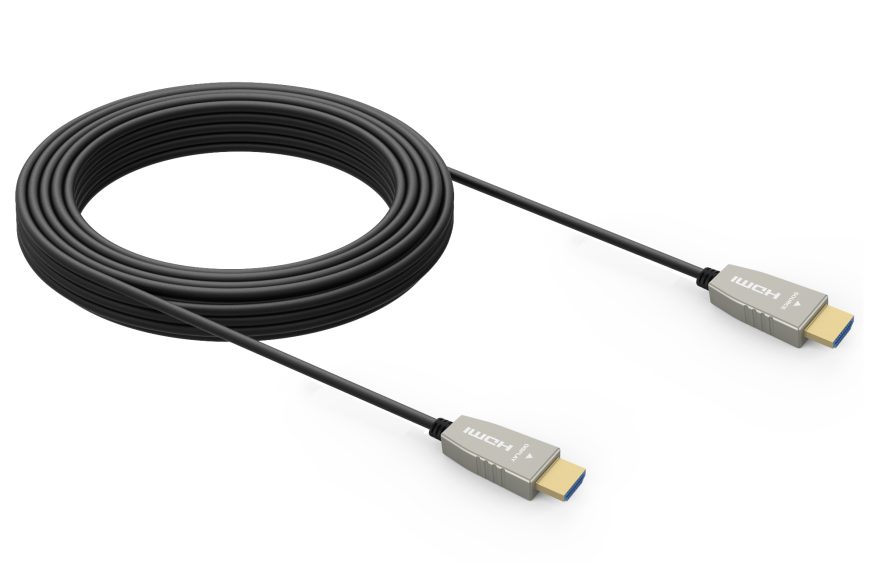
Here is the detail that catches people out. ARC works over an ordinary HDMI cable, but eARC’s extra bandwidth needs an HDMI cable that can carry it — a High Speed HDMI cable with Ethernet at minimum, and an Ultra High Speed HDMI cable for full headroom. Use an old or thin cable and your shiny new eARC soundbar may refuse Atmos or drop to stereo, with no obvious warning.
Built for eARC: the Tono Stallion 8K HDMI Cable
The Stallion is an 8K HDMI 2.1 braided cable with full eARC support — so it passes Dolby Atmos and lossless audio without choking your soundbar. It also handles 8K@60Hz and 4K@120Hz with HDR, VRR, and ALLM for gaming, all in a durable braided build with gold-plated connectors.
View the Stallion 8K HDMI cable →For longer runs to a projector or a wall-mounted display across the room, a passive cable won’t hold a high-bandwidth signal — switch to an active optical (fibre) HDMI cable instead — see our guide to picking a 10-metre HDMI cable for 4K. Browse the full range on Tono’s HDMI cables page.
Watch: HDMI ARC vs eARC in two minutes
Troubleshooting HDMI ARC
When ARC misbehaves, the cause is almost always a setting or the cable — not faulty hardware. Work through these in order. The steps are the same whether you’re on an LG, Samsung, Sony, TCL, Hisense, or Mi (Xiaomi) TV — only the name of the HDMI-CEC menu changes by brand.
No sound at all from the soundbar
Confirm the cable is in the TV’s ARC/eARC port (not a plain HDMI port), enable HDMI-CEC on both devices, and set the TV’s audio output to “HDMI ARC” or “Audio system.” A power-cycle of both units often completes the handshake.
Sound works, but no Dolby Atmos or lossless audio
Both devices must support eARC, and eARC may need enabling in the TV menu. Set the TV’s digital audio to “Bitstream” or “Pass-through,” not “PCM” — and make sure your HDMI cable is eARC-capable.
The TV remote won’t control soundbar volume
This is a CEC issue. Switch on HDMI-CEC under its brand name (Anynet+, Bravia Sync, SimpLink, Viera Link) on both the TV and the soundbar, then re-test.
Audio is out of sync with the picture
Use the TV’s or receiver’s audio-delay / AV-sync setting to nudge the sound into line. eARC’s automatic lip-sync usually handles this on its own once both devices are in eARC mode.
Sound cuts out intermittently or won’t reconnect
Re-seat the HDMI cable at both ends, try the handshake again after a power-cycle, and update the firmware on the TV and soundbar. A failing or under-spec cable is a common culprit — swap in a known-good, eARC-rated cable to rule it out.
Frequently asked questions
What is HDMI ARC used for?
What is the difference between ARC and eARC?
Do I need a special HDMI cable for eARC?
Is HDMI ARC better than optical?
Why is my HDMI ARC not working?
Which HDMI port is ARC?
Can I get Dolby Atmos through HDMI ARC?
Is an HDMI ARC cable different from a regular HDMI cable?
Does HDMI ARC carry video?
Get eARC right the first time
Most ARC headaches trace back to the cable. The Tono Stallion is an 8K HDMI 2.1 cable with full eARC support, so Dolby Atmos and lossless audio reach your speakers intact.
Explore the Stallion 8K HDMI cable →